
How to Run a WhatsApp Campaign for a Health Camp or Check-Up Drive.
Learn how to run a WhatsApp campaign for a health camp or check-up drive: build your list, send broadcasts, answer enquiries, and track results.
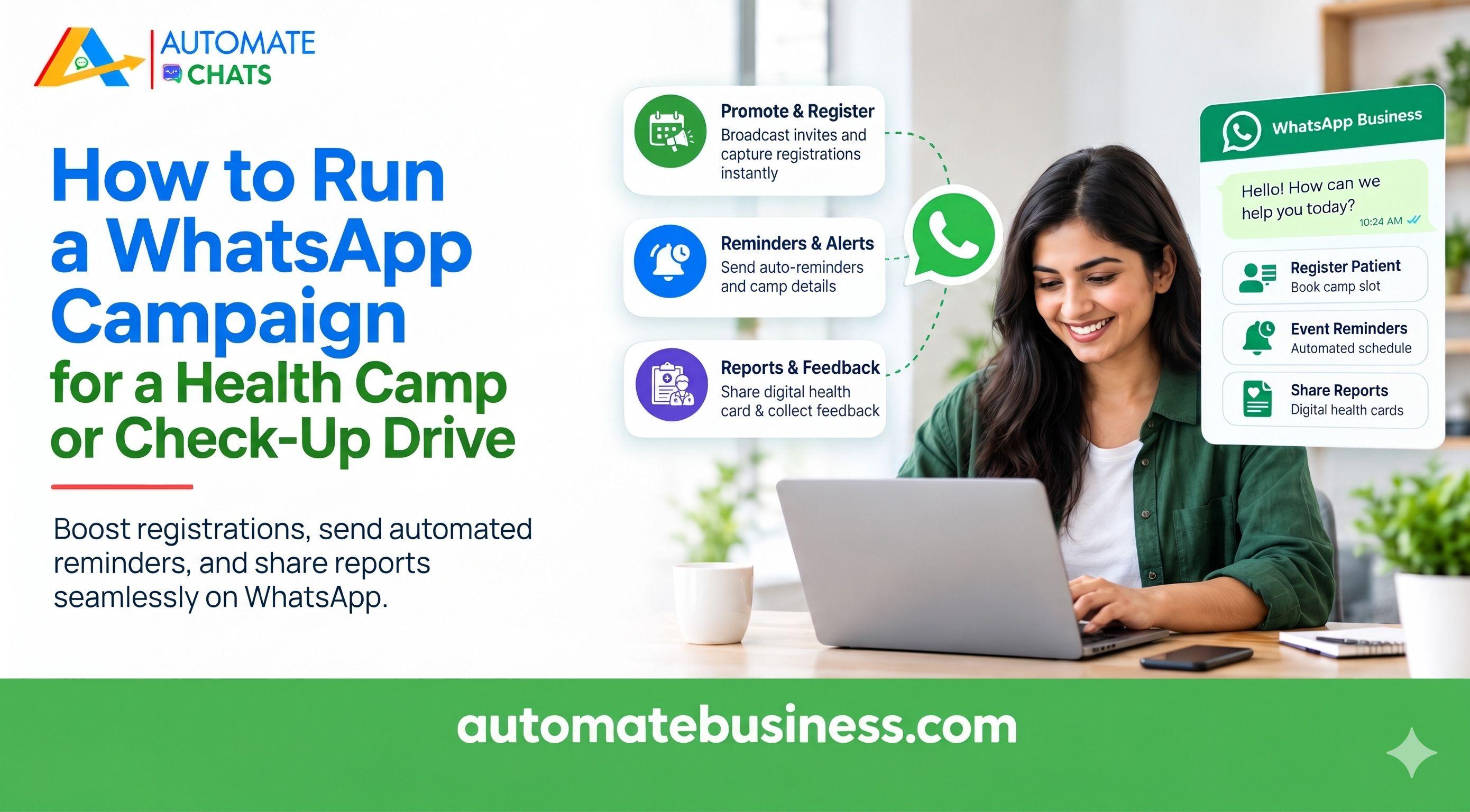
To run a WhatsApp campaign for a health camp or check-up drive, build a consented patient list, send an approved broadcast with the camp details, and let a chatbot answer enquiries. Then confirm slots, send reminders, and track results. With Automate Chats WhatsApp API Marketing, you can do all of this from one shared workspace without writing code.
This guide walks you through each step, from segmenting contacts to measuring replies. You will also see how a clinic handles sixty enquiries a day, and how Automate Chats stands apart from other tools.
Why WhatsApp Works for a Health Camp or Check-Up Drive
A health camp lives or dies on turnout. People need to know the date, the venue, the timing, and whether the check-up is free, and they need to hear it in a place they already check every day.
WhatsApp is that place for most patients. A WhatsApp campaign puts your camp details directly in their chat, where they can reply with one tap.
The WhatsApp Business API makes this practical at scale. Unlike a single phone, it lets several staff members share one number, use approved templates, and automate repeat work. Automate Chats is built on this API and is made by Automate Business, a Meta Business Partner.
- Step 1: Build and Segment Your Patient List
Start with the people who already know you. Upload your contact list by CSV, so past patients, camp registrants, and enquiries become contacts in one place.
Only message people who have agreed to hear from you. Clear opt-in is a core part of WhatsApp business rules, and it also builds trust with patients.
Then use tags and groups to segment the list. You might separate patients for a diabetes screening from those who asked about dental check-ups, or group contacts by area near the camp venue.
Contact management in Automate Chats stores these details once. You can reuse them across chats, campaigns, and automation, so each message reaches the right audience. - Step 2: Send a WhatsApp Broadcast Campaign
Your broadcast is the invitation. Keep it short, clear, and personal.
Include the camp name, date, time, venue, and what is on offer, such as a free check-up. Add the patient's first name, and finish with one clear action, like replying "YES" to register.
WhatsApp requires approved templates for business-initiated messages. Create your template, send a test to your own phone, and then schedule the campaign for a time when patients are likely to read it.
Automate Chats lets you choose the audience, personalize the approved message, and see how customers respond from one place. After sending, campaign analytics show how many messages were sent, delivered, read, clicked, and replied to. You can then use the Retarget option to follow up only with those who showed interest. - Step 3: Answer Camp Enquiries with a No-Code Chatbot
Once the broadcast goes out, questions arrive fast. They are usually the same few: what are the timings, what are the fees, and can I come tomorrow?
Dr. Shah's Dental Clinic is a typical example of how growing enquiry volumes can put pressure on a small counselling team. The clinic runs ads, and patient enquiries continue arriving in the evening, even after the reception desk closes at 8 pm. The receptionist ends up typing the same three answers nearly 60 times a day.
Meanwhile, patients visiting the clinic may have to wait more than six minutes for attention. After hours, some potential patients give up waiting and book appointments elsewhere. Health camps can create similar challenges, with a sudden increase in enquiries that the reception team struggles to handle efficiently.
A practical solution is an AI chatbot built using Automate Chats. Instead of manually creating every response, the receptionist can describe the desired conversation flow in simple language, such as greeting patients, answering common questions and directing them to the reception team when needed. The AI chatbot builder then generates the workflow on a visual canvas, connecting each step to create an automated conversation.
Test the Bot Before You Turn It On
Before going live, you can test the entire conversation flow. During testing, no messages are sent to WhatsApp, ensuring patients never receive an incomplete or unfinished chatbot experience.
Once everything works as expected, simply activate the chatbot. From then on, it automatically greets every patient and shares the health camp timing, venue and registration details. It also asks patients about their requirements and preferred appointment day.
For example, when a patient sends an enquiry at 10 pm, the chatbot collects her details and automatically assigns the conversation to the right team member. The next morning, a clinic representative can follow up with a single reply to confirm the appointment slot.
The result is simple: the chatbot handles repetitive questions while your team focuses on patient care. Reception waiting times can be reduced, and even enquiries received outside working hours are captured with all the necessary details, ready for follow-up. - Step 4: Use the Team Inbox for Registrations and Handover
Some patients need a human. They may have a special request, a concern about their report, or a question the bot cannot answer.
The shared team inbox keeps all of these chats in one place. You can assign each conversation to a team member, add internal notes, and keep the full history together. That means no missed messages and no duplicate replies from two staff members.
You can also add an AI assistant that answers common questions using the information you provide, such as camp timings and preparation instructions. It hands the chat to your team when a case needs a person. This keeps routine questions fast and sensitive ones personal. - Step 5: Send Reminders and Follow-Ups
Registration is not attendance. Many people sign up and then forget the date, so reminders matter.
Use WhatsApp automation to send a reminder the day before and a short message on the morning of the camp. Automate Chats supports appointment reminders, scheduled follow-ups, and after-hours replies. These help reduce no-shows while your team stays free for the camp itself.
After the camp, send a thank-you message and a follow-up for anyone who needs a further consultation. You can also invite attendees to your next drive. Because every contact is tagged and tracked, the next campaign is faster to set up. - Step 6: Measure What Worked
A campaign is only useful if you know how it performed. Analytics in Automate Chats shows conversation volume, first reply time, campaign results, and team workload.
Check how many messages were delivered and read, how many patients replied, and which areas responded most. Use these findings to improve your next template, timing, and audience.
You can also connect WhatsApp to other systems through APIs and webhooks, such as Automate CRM or Google Sheets. This helps you move registrations into your records without manual entry.
How Automate Chats Is Different
Many WhatsApp tools focus on one job, such as bulk sending or a basic inbox. Automate Chats combines campaigns, team inbox, automation, chatbots, AI assistants, contacts, and analytics in one workspace.
Here is what sets it apart:
- Describe it, and the bot is built. The AI chatbot builder turns a plain-language description into a connected flow.
- Safe testing. You can test a chatbot before any message reaches a patient.
- Humans and automation together. Bots take routine questions, and your team takes over when needed.
- Built for growing teams. It is designed for MSMEs, with affordable pricing and mobile-first apps.
- Easy start. A 7-day free trial and CSV bulk upload help you launch quickly.
Frequently Asked Questions
- How do I run a WhatsApp campaign for a health camp?
Upload your opted-in contacts, send an approved broadcast with the camp details, and set up a chatbot for enquiries. Then send reminders and review analytics. - Do I need the WhatsApp Business API for a check-up drive?
It is the practical choice when several staff members must share one number and send campaigns at scale. - Can a chatbot answer camp enquiries after hours?
Yes. A no-code chatbot can answer common questions, take patient details, and assign the chat to your team. - Can I send appointment reminders on WhatsApp?
Yes. Automate Chats supports scheduled reminders and follow-ups. - Can I try Automate Chats first?
Yes. There is a 7-day free trial, and you can book a demo.
Start Your Health Camp Campaign with Automate Chats
A successful camp needs clear invitations, quick answers, and timely reminders. WhatsApp gives you all three in one place. Ready to launch your next check-up drive? Start your 7-day free trial or book a demo to see Automate Chats in action.